How To Create a Chatbot With ChatGPT
Learn to create a ChatGPT chatbot. We discuss designing conversation flows and deploying and updating your chatbot in an easy-to-follow format.

.png)
.avif)
Chatbots have become a standard feature in how we interact with technology, showing up in customer service chats, scheduling tools, and even personal productivity apps. At the center of many of these advancements is ChatGPT, OpenAI's AI model that has been transforming digital interactions since its launch in 2022.
If you've tried ChatGPT on OpenAI's official website, you know how useful it can be, especially in answering questions, analyzing data, generating content, summarizing information, and mimicking natural conversations.
But you're not limited to using ChatGPT only through the official website. With OpenAI's API, you can create your own chatbot and tailor it to your needs, whether that's handling customer support, streamlining workflows, or experimenting with new AI-driven ideas.
In this guide, we will show you how to create a custom GPT with no code directly inside ChatGPT's website. We will also connect to the OpenAI API, obtain secret API credentials, and use them to develop an artificial intelligence chatbot from scratch.
Understanding ChatGPT and the OpenAI API
ChatGPT is a generative AI tool designed to interpret and respond to text inputs based on a generative pretrained transformer (GPT) architecture. GPTs are large language models (LLMs) trained on vast amounts of data, allowing them to perform tasks like text and code generation and information retrieval.
As of August 2025, ChatGPT defaults to the GPT-5 model for both free and Plus subscribers. Free users have a limited number of inputs before the model switches to the lighter GPT-5 Mini.
The GPT-5 model delivers the latest in conversational experiences through machine learning and natural language processing (NLP) that allow it to process user inputs, determine user intent, and generate meaningful and coherent responses.
OpenAI also offers an API that users can use to incorporate AI features into their applications. For users who want to incorporate a chatbot into their systems, the OpenAI API saves you time and effort since you don't have to create and train your own AI models.
One word of caution: You don't want to send to an API information that you wouldn't provide in ChatGPT directly. OpenAI can retain data in inputs to improve its services and train future models, and the company cautions users not to enter sensitive, proprietary, or personally identifying information.
With that said, integrating the ChatGPT API allows you to tailor your applications for specific roles. For instance, if you have an e-commerce business, you can use ChatGPT to provide responses to incoming client queries or FAQs.
The core functionalities of the OpenAI API include:
- Text generation. The API allows your AI assistant to draft content, answer questions, write code, and translate languages.
- Image generation. The OpenAI API supports image generation using the DALL-E 2 and DALL-E 3 deep learning models.
- Vision. The OpenAI API can analyze images and extract different details using the GPT-5 model.
- Text to speech. You can use OpenAI's Audio API to narrate written content.
- Fine-tuning. By using custom data, the OpenAI API allows you to fine-tune the underlying GPT models to perform more specialized roles.
OpenAI API cost
The OpenAI API isn't free. You'll first need a subscription to ChatGPT Go, ChatGPT Plus, or an Enterprise account to integrate the API into your own application. ChatGPT Go is $5 per month, ChatGPT Plus is $20 per month, and an Enterprise account has a varying charge depending on your needs.
OpenAI APIs also use a token-based pricing system, meaning you're charged for the text you send to and receive from the model (in addition to the monthly subscription).
For example, the flagship model, GPT-5, costs $1.25 per 1 million input tokens and $10.00 per 1 million output tokens. Lighter models are available too; GPT-5 mini at $0.25 per 1M input tokens and $2.00 per 1M output tokens, and GPT-5 nano at $0.05 per 1M input tokens and $0.40 per 1M output tokens.
What tokens mean:
- Input tokens represent the text you send to the model. This can be your prompt, instructions, or data
- Output tokens represent the text the model generates in response
As a rule of thumb, 1 token equals 4 characters of English text, or roughly 3 quarters of a word. So, 100 tokens can be about 75 words.
5 steps to create your own chatbot (no coding required)
In this section, we'll explain how to use the OpenAI interface to create a chatbot. For this tutorial, you don't need coding knowledge since you'll use a built-in GPT builder. Before proceeding, ensure you have an OpenAI account.
1. Create your GPT
To get started, navigate to the ChatGPT homepage.
Click on "Explore" under GPTs on the left navigation bar.
You should see the following page:
Press the "+ Create" button at the top right corner of the page to proceed.
You'll be directed to the following page:
You can now interact with the GPT builder to create your bot. To illustrate, we'll create a customer support chatbot for an online car rental business. We'll need to submit a series of prompts guiding the model on what the chatbot should do.
Our first prompt is, "Make a customer support chatbot that will help us manage an online car rental business."

Next, the GPT builder generates a GPT name. In our case, it recommended Auto Assistant. You can submit a prompt accepting the name or suggesting a new one.
We suggested a new name with the prompt, "I prefer the name Car Hire Assistant."

The GPT builder adopted the new name and then moved on to generate a profile picture for the bot. Once again, you can use a prompt to accept or change the suggested profile picture.
In our case, we accepted the profile image with a simple, "That works."

Next, let's outline the tasks we want the bot to perform. In our case, the bot should provide general information about car hire services and the car models we have.
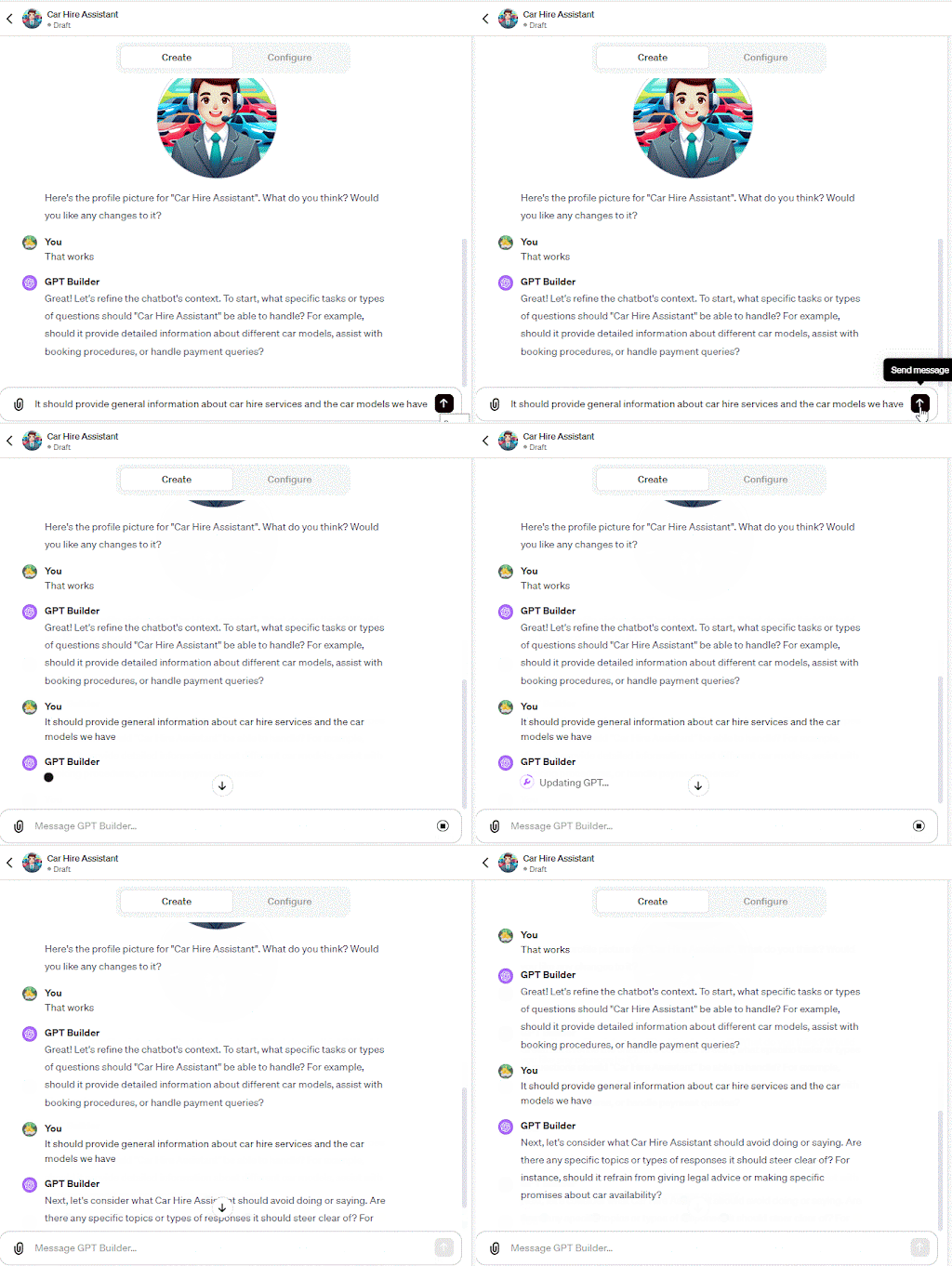
Once we specify what the chatbot should focus on, the GPT builder asks if there are any topics the bot should steer away from.
In our case, we want the bot to focus only on car hire-related topics and refrain from making promises about car availability.
We can now use the preview panel — on the right side — to test and refine the chatbot.
Review the generated content to determine if it suits your needs, and continue customizing the bot using prompts if needed.
2. Configure your GPT
You can optimize the chatbot by manually adding advanced settings like changing the chatbot's name, profile picture (with DALL-E integration), and instructions. You can also set custom conversation starters and upload knowledge resources.
To get started, click the "Configure" tab to access the advanced settings page.

The settings page should appear as follows:
The settings page is prepopulated with the settings the GPT builder generated from our prompts.
You can change your bot name, modify instructions, and add new conversation starters. In our case, we added a "Find luxury cars to help you stand out" conversation starter.
You can also upload data sources like articles and documentation to allow the ChatGPT bot to extract key information on how to perform its roles.
For extended functionalities, enable the code interpreter feature to let your GPT bot run code, analyze data, and solve complex math problems.
You can add new actions by clicking the "Create new action" button at the bottom of the page. This allows the bot to perform roles outside ChatGPT's scope.
3. Save your GPT
To save your GPT bot, press the "Create" button in the top right of the navigation bar.
You'll see three sharing options: "Only me," "Anyone with the link," or "Public." We chose the "Anyone with the link" option. Click the "Save" button to complete the process.
When you save the GPT, it'll become visible on the ChatGPT homepage.
4. Share your GPT
You can share the custom GPT with other users with a link.
To access the link, click on "GPTs" and then the specific GPT you created. In our case, it's a Car Hire Assistant.
This will load the custom GPT on the browser.
If you have already enabled "Anyone with the link" share option (discussed in step 3), you can copy and share the GPT's link directly from your home page's search bar.
Before sharing the link, consider the purpose of your chatbot to ensure you're sending it to the right audience.
5. Edit and maintain your chatbot
You can edit and update your custom chatbot by navigating to the GPTs on the side navbar and finding your target GPT. In our case, it's "Car Hire Assistant." Click the GPT to load it in the browser.
Click the drop-down icon and then the "Edit GPT" option.
To delete the GPT, click the three dots (...) on the top bar of the editing page and then "Delete GPT."
6 steps to create your own chatbot (coding required)
This section covers how to program your own chatbot. To follow this tutorial, you'll need some coding knowledge.
- Assess your requirements and goals
- Create an OpenAI account and get your API key
- Choose your development environment
- Design your chatbot's conversation flow
- Integrate the ChatGPT API with your chatbot
- Deploy your chatbot
1. Assess your requirements and goals
Before creating a chatbot, you should have a clear idea of its functionalities. Start by defining the purpose and scope of your chatbot. For example, if it's for customer service, data retrieval, or content creation. Also, consider your target audience and their desired functionality.
2. Create an OpenAI account and get your API key
You'll need a custom API key to allow the bot to access ChatGPT's functionalities. To get started, you'll need an OpenAI account. Generating an OpenAI key is free, but you'll have to pay to make API requests.
Click on your profile icon at the top right corner and then API keys.
If you've generated OpenAI's API keys before, they'll appear on the above page. If you haven't, create a new one by clicking the "Create new secret key" button at the top right corner of the page.
Next, add an optional secret key name and then click "Create secret key" in the dialog above. We'll later use the key in our project. Copy and paste the generated key into a separate text file to keep it safe.
3. Choose your development environment
Whether you're on Windows, Mac, Android, or iOS, you need to set up a development environment to start working with the OpenAI API. Most support the required project dependencies. So, the choice of which to use boils down to your preferences and available resources.
The OpenAI API is more compatible with the Python programming language, but it can also support other languages like JavaScript.
To set up a JavaScript development environment, download and install Node.js for running JavaScript code on your computer, and download NPM for installing required project dependencies. You can download Node.js from the official website — and it comes bundled with NPM, saving you time.
4. Design your chatbot's conversation flow
A conversation flow guides how you interact with a chatbot, and designing one for your chatbot can facilitate better user experiences. It also allows the chatbot to produce more consistent responses.
Consider mapping out potential user interactions and creating a script that reflects the chatbot's personality and objectives. For instance, if you're building a customer support chatbot, assess different ways customers will interact with the bot and the possible questions they may ask.
AI chatbots use NLP to process inputs, meaning you can interact with them conversationally, and they interpret prompts with a high degree of accuracy. Practice with different prompts in ChatGPT and review the generated content. Use findings from these reviews to make your conversation flow more engaging and improve outputs.
5. Integrate the ChatGPT API with your chatbot
In this step, we'll use JavaScript to create a simple ChatGPT that responds to a question in the command terminal.
Start by creating an empty project folder on your computer and then opening it in your integrated development environment (IDE). In this example, we'll use Visual Studio Code as our IDE.
Next, initialize the project and generate a package.json file by running the npm init command in your browser.
A package.json file containing the following code should be generated in your project folder.
{ "name": "simplechatbot", "version": "1.0.0", "description": "", "main": "index.js", "scripts": { "test": "echo \"Error: no test specified\" && exit 1" }, "author": "", "license": "ISC" }Next, install the OpenAI dependency using the npm i openai command. You should see the following output if OpenAI was successfully installed.
Proceed and create an index.js file, and then add the following code to import the OpenAI library:
import OpenAI from "openai";Next, define an API_KEY variable to hold our OpenAI API key. Retrieve the API key you generated in the first step and add it here.
Note: We added the API key here for simplicity. But in a real-world project, the API key should be kept in a separate file and accessed as an environment variable.
const API_KEY = "add api key here"We can now create a new OpenAI object and pass in our API key.
const openai = new OpenAI({ apiKey: API_KEY });To send an API request, we need to use an async request because we aren't sure when it will be completed. In the request, we'll add our prompt and the GPT model that should respond.
In this example, we used the prompt "What are the top five wonders of the world."
async function askQuestion() { const completion = await openai.chat.completions.create({ messages: [{ role: "system", content: "What are the top five wonders of the world." }], model: "gpt-3.5-turbo", }); console.log(completion.choices[0]); //Printing the API response }Finally, we invoke the askQuestion function.
askQuestion()Here's the entire code for the chatbot:
import OpenAI from "openai"; const API_KEY = "add api key" const openai = new OpenAI({ apiKey: API_KEY }); async function apiCall() { const completion = await openai.chat.completions.create({ messages: [{ role: "system", content: "What are the top five wonders of the world." }], model: "gpt-3.5-turbo", }); console.log(completion.choices[0]); } apiCall();When you execute the code, the chatbot should respond with an answer to the question.
We've created a relatively simple chatbot that responds to a user query. You can use the principles applied in this project to build more complex bots for other use cases.
While at it, some errors you may face include:
- Authentication errors. They may occur if your API key is incorrect. Ensure you have the right API key in all requests.
- Timeout errors. They arise when your request takes too long to be processed. This could indicate that the server is under load.
- Quota limit errors. You may see these errors when you pass the set usage limit on your plan.
7. Deploy your chatbot
Once you've created and successfully tested a chatbot, consider deploying it on an online platform where you or other users can access it. You can deploy the chatbot on your website, mobile app, or CRM system. It can also be integrated into platforms like Discord, Slack, and Facebook.
Perform regular monitoring to ensure the chatbot remains functional and efficient after deployment. Analyze API logs for any issues and implement fixes quickly.
Consider fine-tuning AI models to allow your app to perform specific functions more accurately.
Get help with creating a chatbot
AI-powered chatbots like ChatGPT can perform repetitive tasks with little or no human intervention and in real-time, allowing you to focus more on creative tasks. These applications also help with tasks like content generation, language translation, and writing code.
With the OpenAI API, you can create chatbots without having to invest significantly in the required AI infrastructure.
However, you may need technical skills, including programming knowledge, to integrate the OpenAI API into your applications successfully. Acquiring the necessary skills takes time. Consider engaging freelance chatbot developers on Upwork to get started with your projects quickly.
And if you're an expert looking for work, Upwork can connect you with chatbot development jobs to help you grow your portfolio.
FAQs
We answer common questions about using ChatGPT to create a chatbot.
Do I need programming experience to build a chatbot with ChatGPT?
Some coding knowledge is helpful, especially in languages like Python or JavaScript, since you'll be working with the OpenAI API. That said, beginners can still get started by following step-by-step guides and using example code and docs provided by OpenAI.
What can I use a custom ChatGPT chatbot for?
A custom chatbot can handle customer service requests, automate repetitive tasks, act as a personal assistant, provide educational support, or even serve as a creative tool for brainstorming and content generation. The possibilities depend on how you design it.
Is building a ChatGPT chatbot expensive?
OpenAI's API is priced based on usage, meaning you pay for the tokens (pieces of text) your chatbot processes. Costs are usually low for small projects, but can quickly add up for large-scale or high-volume applications.
How is a custom ChatGPT chatbot different from using ChatGPT on OpenAI's website?
When you use ChatGPT on the website, the experience is general-purpose. A custom chatbot lets you define the context, tone, and instructions, making it more specialized and aligned with your specific use case.
Upwork is not affiliated with and does not sponsor or endorse any of the tools or services discussed in this article. These tools and services are provided only as potential options, and each reader and company should take the time needed to adequately analyze and determine the tools or services that would best fit their specific needs and situation.
Prices are current at the time of writing and may change over time based on each service's offerings.

.avif)

Author Spotlight

Upwork is the world’s largest human and AI-powered work marketplace that connects businesses with independent talent from across the globe. We serve everyone from one-person startups to large organizations with a powerful, trust-driven platform that enables companies and talent to work together in new ways that unlock their potential.